
What does it mean to clone an item. Typically, we all purchase the same items again and again.
If you clone (or duplicate) an item you only have to change the fields that are different. EX: Expiration Date or Qty
This saves you time. We'll show you several ways to clone an item below.
What does it mean to retire an item. Let's say a product item has expired and you no longer want to view it in your inventory.
But you don't necessarily want to delete it because you may purchase the product again.
If you delete it from your system you'll have to re-enter all of the data again.
You will want to retire that item so that it's available to clone. It will not display in your active list but it will still be in the system.
When you repurchase that item you can view your list of retired AND active items and quickly choose that item to clone.
If you clone (or duplicate) an item you only have to change the fields that are different. EX: Expiration Date or Qty
This saves you time. We'll show you several ways to clone an item below.
What does it mean to retire an item. Let's say a product item has expired and you no longer want to view it in your inventory.
But you don't necessarily want to delete it because you may purchase the product again.
If you delete it from your system you'll have to re-enter all of the data again.
You will want to retire that item so that it's available to clone. It will not display in your active list but it will still be in the system.
When you repurchase that item you can view your list of retired AND active items and quickly choose that item to clone.
View the examples below!
There are several ways to navigate to clone an item.
Click the clone tab when editing an item.
Navigate to the item by locating it in your Main Inventory.
Remember that this is a listing of your active items. Use this method to clone an item only if the item you want to clone is active.
Click the Title.

On the Product Item Page Click the Clone tab.

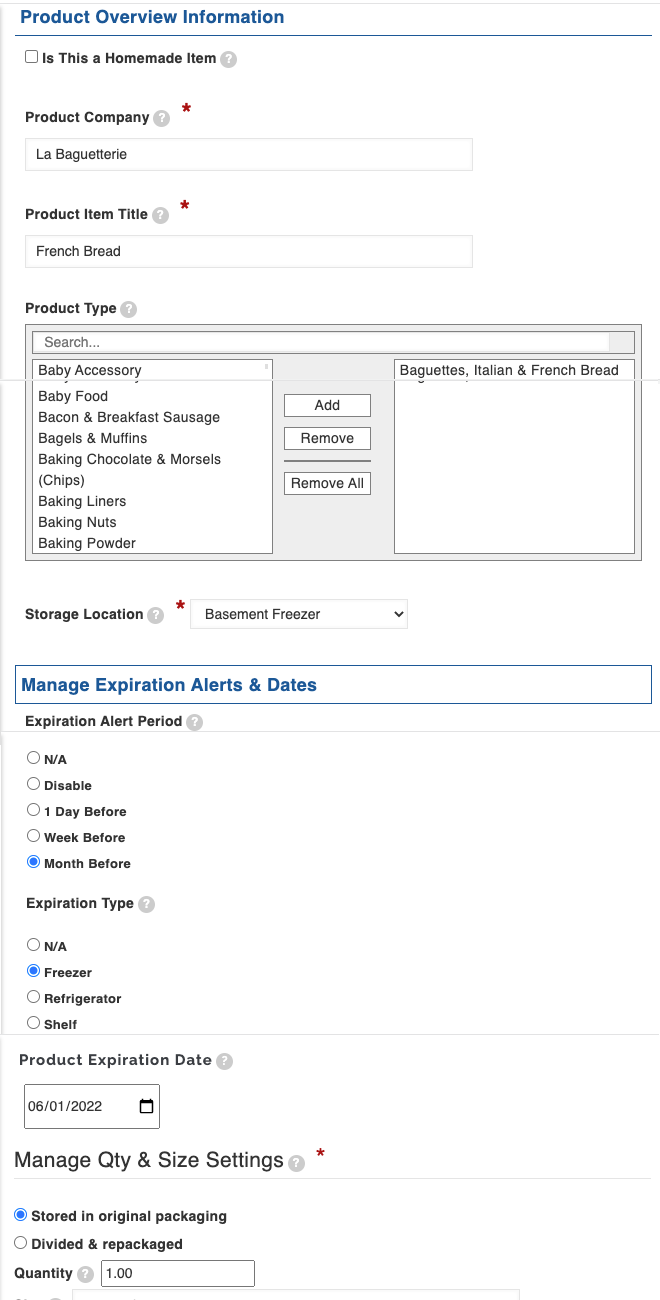
Notice that the fields are PRE-filled. Make any changes to the item. EX: Expiration Date, Qty, Storage Location, etc.
And save the item. It now becomes a NEW item in the system and will display in your active inventory.
You can also clone an item by navigating to the Clone Selection List
This is the best way to clone an item because your active AND retired product items are included in this list.
Use the filters to find the item you want to clone and click on the clone link.

Make any changes to the item. EX: Expiration Date, Qty, Storage Location, etc.
And save the item. It now becomes a NEW item in the system and will display in your active inventory.
Click the clone tab when editing an item.
Navigate to the item by locating it in your Main Inventory.
Remember that this is a listing of your active items. Use this method to clone an item only if the item you want to clone is active.
Click the Title.
On the Product Item Page Click the Clone tab.
Notice that the fields are PRE-filled. Make any changes to the item. EX: Expiration Date, Qty, Storage Location, etc.
And save the item. It now becomes a NEW item in the system and will display in your active inventory.
You can also clone an item by navigating to the Clone Selection List
This is the best way to clone an item because your active AND retired product items are included in this list.
Use the filters to find the item you want to clone and click on the clone link.
Make any changes to the item. EX: Expiration Date, Qty, Storage Location, etc.
And save the item. It now becomes a NEW item in the system and will display in your active inventory.
To retire an item Navigate to the item by locating it in your Main Inventory.
Click on the Title to view it's page. Click on the Edit tab.
Check the retire box. and save the item. It will now appear in your Clone Selection List. It will NOT appear in your Main Inventory List (those are active items).

Click on the Title to view it's page. Click on the Edit tab.
Check the retire box. and save the item. It will now appear in your Clone Selection List. It will NOT appear in your Main Inventory List (those are active items).